Account Safeguarding Leads
People that have access to the Safeguarding Module are split into two groups, Account Safeguarding Leads and Users.
Account Safeguarding Leads can only be added from within Safeguarding by another Account Safeguarding Lead.
To add an Account Safeguarding Lead, we will need to go to Safeguarding, click Settings and click the Access tab. We’ll then need to scroll to the bottom of the page, to the Account Safeguarding Leads section and click the Add Account Safeguarding Lead button.
If the person is already in our iKnow Safeguarding account, we can search for the person we wish to add by typing in the search box and then selecting them from the list that appears.
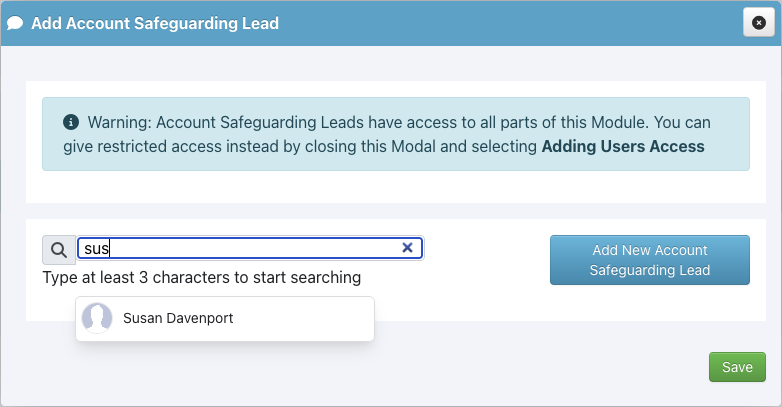
We'll need to click the Save button to add the person as an Account Safeguarding Lead.
If the new Account Safeguarding Lead is not already in our iKnow Safeguarding Account, we can click the Add New Account Safeguarding Lead button, to add them to the system.
We can then add their details, choose which Locations they should have access to and, if we want them to be sent an email with log on details, we'll need to tick the tickbox. Clicking the Create User button will add them as an Account Safeguarding Lead.
If we need to remove an Account Safeguarding Lead, we can click the red dustbin button to the right of their name, in the list. We can then click the Confirm button, to confirm we wish to remove the person, and they will be removed from the list.